Conditional content
ClickHelp supports conditional content. It means that parts of your content can be present in one output and excluded from the other.
For example, you can have instructions for administrators exists in the topic meant for the general audience, and it will be excluded from the PDF you send out to your readers, but present in the online publication, accessible by administrators only.
You can easily manage your conditional content blocks using the Design View. Specifically, the "Conditional Content" section of the Single-Sourcing tab in the ribbon.
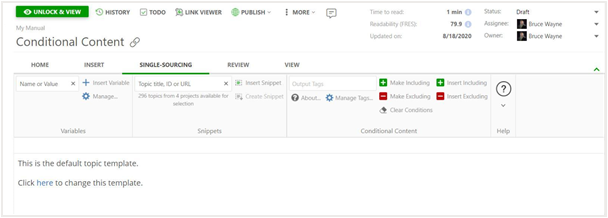
Let's see what this section is comprised of:
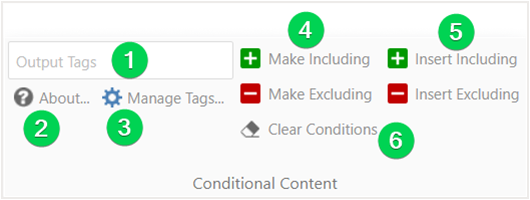
- Output Tag selection field — You will need to choose at least one tag to be able to insert conditional content or convert existing content to conditional.
- About — Link to this topic.
- Manage Tags... — Opens Output Tags settings.
- Make Including / Make Excluding — Makes currently active element or the common parent element of selected elements conditional.
- Insert Including / Insert Excluding — Inserts a conditional block of the specified type with either the default content or with the selected content.
- Clear Conditions — Clears conditions on the currently active element or within a selection.